This post may contain affiliate links. If you make a purchase through these links, we may earn a commission at no additional cost to you.
The modern home office is often a graveyard of dongles. If you’re a remote professional, you likely live the daily struggle: plugging in a power brick, an HDMI cable, a USB hub for your mouse, and maybe an ethernet adapter every time you sit down. It’s friction. It’s clutter. And frankly, it’s unnecessary.
The promise of USB-C was a single cable to rule them all—video, data, and power flowing through one slender cord. But the market is flooded with “USB-C Monitors” that fail to deliver on that promise. Some lack the wattage to keep a MacBook Pro alive under load; others use cheap panels that induce eye strain after four hours.
We dug through the spec sheets and real-world feedback to find the monitors that actually function as reliable docking stations. We aren’t looking for just “good screens”; we’e looking for the command center of your desk.
We analyzed the engineering, power delivery specs, and user sentiment to find the only 5 options worth your money.
TL;DR: The Quick Verdicts
| Rank & Product | Best For… | The “One-Line” Verdict |
|---|---|---|
| 1. Apple Studio Display | The Mac Purist | Overpriced engineering marvel that forces you to love it. |
| 2. ViewSonic VG2756A-2K | The Power User | The closest thing to a dedicated docking station with a screen attached. |
| 3. BenQ GW2790QT | The Coder | A visual sanctuary for text-heavy workflows and sensitive eyes. |
| 4. ViewSonic VP2456A | The Creator | Professional color accuracy that embarrasses more expensive panels. |
| 5. ViewSonic VX2716A | The Budget Hybrid | High-refresh smoothness for the worker who games after 5 PM. |
The Lab Standard: How We Grade Quality
We don’t use vague terms like “good value.” In the world of USB-C hub monitors, three technical metrics define performance:
- The Power Delivery (PD) Floor This is the non-negotiable wattage the monitor pushes back to your laptop. Anything under 60W is a failure for pro-grade laptops. We look for 90W+ to ensure your CPU doesn’t throttle during rendering or compiling.
- The Pixel Density (PPI) Sweet Spot Resolution isn’t just about “4K.” It’s about how crisp text renders at a specific size. Low PPI leads to jagged fonts and eye fatigue. We evaluate the balance of screen real estate vs. sharpness.
- The I/O Throughput A “hub” monitor is useless if the ports are slow or limited. We grade based on the inclusion of Ethernet (RJ45), the speed of USB downstream ports, and the capability to daisy-chain additional displays.
#1. Apple Studio Display
The undisputed king of integration for the Apple ecosystem, provided your wallet can survive the hit.

Apple Studio Display – Standard glass – Tilt-adjustable stand (2025)
- Seamless Ecosystem Control: Adjust brightness and volume directly from your Mac keyboard without OSD menus.
- Conference Room Quality: Built-in studio microphones and a 12MP Center Stage camera eliminate the need for external peripherals.
- Spec Highlight: 5K Retina Resolution (5120 x 2880) for “painted-on” text clarity.
- Spec Highlight: 96W Power Delivery via Thunderbolt 3.
- Who it’s for: The Deep-Ecosystem Mac Loyalist.
The Engineering & Design
The A13 Bionic chip embedded inside this monitor is the “Secret Sauce.” This isn’t just a display; it’s a computer-assisted peripheral. The chip powers features that no other monitor on this list can replicate natively: Center Stage for the webcam, Spatial Audio for the six-speaker array, and “Hey Siri” functionality. The build is solid aluminum—heavy, dense, and rattle-free. It feels less like an accessory and more like infrastructure.
The Performance Experience
The 5K Retina resolution (5120 x 2880) is the Anchor Spec here. At 27 inches, this delivers a pixel density that makes pixels invisible to the naked eye. For writers and coders, text appears painted on the glass. The 600 nits of brightness is overkill for indoors but perfect for fighting glare. Combined with 96W of Power Delivery, it keeps even a 16-inch MacBook Pro topped up while handling high-bandwidth data without a stutter. It is the definition of “plug and play.”
What Customers Say About the Studio Display
- The Frustration: The price tag is a massive pain point, specifically the fact that a height-adjustable stand is a $400 upgrade. One user noted, “It was a stretch for me to pay the hefty price… I just think it shouldn’t have to cost as much as it does.”
- The Consensus: Owners agree it is the “perfect Mac partner.” The seamless integration allows brightness and volume control directly from the Mac keyboard, a feature surprisingly rare in third-party monitors.
- The Praise: The speakers. Users consistently rate them as “unbelievable” and better than dedicated desktop speakers, clearing even more clutter from the desk.
The “Fatal Flaw”
The “Apple Tax” rigidity. You cannot use this easily with Windows, and it lacks versatility. It has no HDMI or DisplayPort inputs—only USB-C/Thunderbolt. If you want to plug in a gaming console or a PC tower alongside your Mac, you are out of luck.
Who Is This For?
The Deep-Ecosystem Mac Loyalist. If you use a MacBook and want the single-cable dream without fiddling with OSD menus, this is the only choice.
#2. ViewSonic VG2756A-2K
A boring, utilitarian workhorse that eliminates the need for a separate $200 docking station.
The Engineering & Design
The “Secret Sauce” here is the Integrated Ethernet (RJ45) combined with Daisy Chain capability. Most USB-C monitors give you video and power; this one gives you hard-wired internet and the ability to link a second monitor directly to the first, meaning your laptop still only needs one cable. It’s an IT department’s dream configuration built into a consumer chassis.
The Performance Experience
The 100W Power Delivery is the headline spec. This is the highest charging capability in our roundup, ensuring that power-hungry workstations (like a Dell Precision or MacBook Pro) won’t slowly drain battery during heavy workloads. The 1440p IPS panel offers a respectable middle ground for sharpness, providing 70% more screen space than 1080p without the scaling issues of 4K.
What Customers Say About the VG2756A-2K
- The Frustration: The power delivery can be finicky. One user reported, “On a few occasions… this failed to charge my laptop,” requiring a power cycle to fix.
- The Consensus: It is the ultimate desk-declutter tool. Users love that the “dock is integrated,” saving space and freeing up laptop ports.
- The Praise: The ergonomics. The stand allows for a 40-degree tilt and easy rotation to portrait mode, which is a favorite for users editing long documents or code.
The “Fatal Flaw”
Audio quality. While it has speakers, they are described as “tinny” and weak (2W). Unlike the Apple Studio Display, you will likely still need external speakers or headphones for anything beyond system notification sounds.
Who Is This For?
The Corporate Power User. If your workspace revolves around a laptop and you need reliable, wired internet and dual screens with zero cable mess, this is the hardware solution.
#3. BenQ GW2790QT
A specialized tool for developers who stare at white text on black backgrounds for 10 hours a day.

BenQ GW2790QT Productivity Monitor 27" 1440P IPS Eye Care Technology 99% sRGB Gen2 Brightness Intelligence Noise Cancelling Microphone and Speaker Ergonomic
- Optimized for Text: “Coding Mode” enhances contrast specifically for dark-mode IDEs and long documents.
- Active Eye Protection: Brightness Intelligence Gen2 sensor adjusts screen temperature based on ambient room light.
- Spec Highlight: Integrated Noise-Cancelling Microphone for headset-free calls.
- Spec Highlight: Eye-CareU software for OS-based setting controls.
- Who it’s for: The Coder / Eye-Strain Prone Developer.
The Engineering & Design
BenQ’s “Secret Sauce” is the Coding Mode paired with Brightness Intelligence Gen2. This isn’t just a preset; the monitor actively sensors ambient light to adjust screen brightness and color temperature, minimizing the pupil dilation fatigue that causes headaches. The software integration (Eye-CareU) allows you to control monitor settings from your OS, bypassing clunky physical buttons.
The Performance Experience
While the specs are modest (1440p resolution, 65W PD), the experience is tailored for longevity. The matte anti-glare coating is aggressive, killing reflections. The Noise-Cancelling Microphone built into the monitor is a surprising addition, allowing you to take clear Teams/Zoom calls without wearing a headset, further reducing physical fatigue.
What Customers Say About the GW2790QT
- The Frustration: Text clarity on macOS. One programmer noted, “I was disappointed in how the text looks… text looking pixelated,” which is a common issue when using 1440p monitors at 27 inches with Mac’s scaling logic.
- The Consensus: It is physically comfortable to use. Users report they “can work on it for hours with no eye strain.”
- The Praise: The daisy-chaining feature (MST) gets high marks for allowing multi-monitor setups without requiring multiple ports on the laptop.
The “Fatal Flaw”
Low Power Delivery (65W). While sufficient for a MacBook Air or an ultrabook, 65W will struggle to charge a powerful laptop under load. You might find your battery slowly draining if you are compiling code or rendering video while plugged in.
Who Is This For?
The Eye-Strain Prone Developer. If your eyes burn by 2 PM, the active brightness adjustment and coding-specific contrast modes are legitimate health features.
#4. ViewSonic VP2456A (ColorPro)
Pantone-validated accuracy for the price of a generic office monitor.
The Engineering & Design
This monitor punches above its weight class with Delta E < 2 accuracy right out of the box. This is the “Secret Sauce”: factory calibration that guarantees the colors you see are the colors that will print or publish. It supports 100% sRGB and Rec.709, making it a legitimate tool for color-critical work, unlike the “vibrant but wrong” colors found on gaming panels.
The Performance Experience
Despite being a smaller 24-inch panel, the FHD (1080p) resolution works well at this size for pixel density. The connectivity is surprisingly robust, featuring 90W USB-C charging (per the product title) and Ethernet. It offers a “frameless” design that makes dual-monitor setups nearly seamless, ideal for a timeline editor.
What Customers Say About the VP2456A
- The Frustration: The on-screen display (OSD) menu. Users describe the menu buttons located on the back as “disordered and uncomfortable,” making manual adjustments a hassle.
- The Consensus: Unbeatable value for creatives. Users are shocked that a monitor at this price point matches the color fidelity of their MacBook screens.
- The Praise: The “just works” hub. Owners highlight that switching between a MacBook, iPad, and PC is seamless, with the USB hub instantly recognizing peripherals for all devices.
The “Fatal Flaw”
Resolution limits. At 1080p, you are losing significant workspace compared to the 1440p and 5K options on this list. For complex video editing timelines or massive spreadsheets, the lack of screen real estate is noticeable.
Who Is This For?
The Aspiring Creator. If you edit photos or video for the web and need to trust your colors without spending $1,000, this is the entry-level standard.
#5. ViewSonic VX2716A
A fast, fluid display that sacrifices “docking” features for gaming performance.
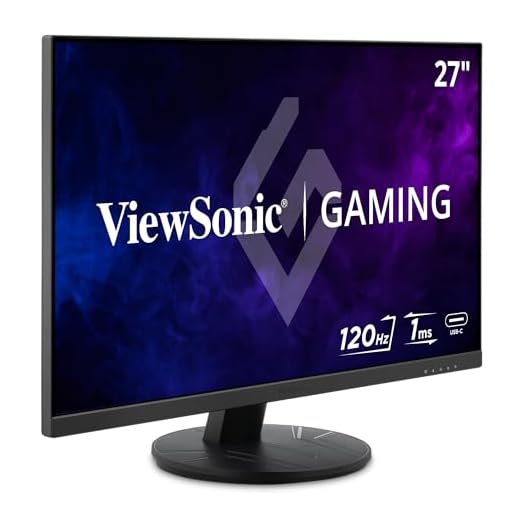
ViewSonic VX2716A 27" Gaming Monitor with FreeSync 1080p 1ms 100Hz IPS
- Fluid Motion: High refresh rate makes scrolling through spreadsheets and documents feel incredibly responsive.
- Work-Play Hybrid: Fast response times eliminate ghosting for gaming sessions after work hours.
- Spec Highlight: 120Hz Refresh Rate.
- Spec Highlight: 1ms (MPRT) Response Time.
- Who it’s for: The Budget Hybrid User.
The Engineering & Design
This is the outlier. Its “Secret Sauce” is the 120Hz Refresh Rate and 1ms Response Time. While marketed for productivity, these specs mean scrolling through documents is buttery smooth, and the cursor glides without the micro-stutter of 60Hz screens. It brings high-end fluidity to the budget sector.
The Performance Experience
The visual experience is defined by speed, but it fails our core “docking” metric. The USB-C port is listed as “Signal Only” in technical descriptions. This means it can transmit video, but it will not charge your laptop. You will still need your power brick. However, for a hybrid setup where you want to play fast-paced games after work, the IPS panel offers great viewing angles and speed.
What Customers Say About the VX2716A
- The Frustration: One user reported a “faint squeal” (coil whine) when the monitor is set to its overclocked 120Hz mode, which could be maddening in a silent office.
- The Consensus: It’s “great value” for a hybrid monitor, but the stand is basic (no height adjustment), leading many to mount it on a VESA arm.
- The Praise: The smoothness. Even non-gamers appreciate the 120Hz refresh rate for how it makes general UI navigation feel more responsive.
The “Fatal Flaw”
It is not a charger. The lack of Power Delivery via USB-C disqualifies it as a true “single-cable” solution. You must plug in your laptop charger separately, defeating the purpose of a clean desk setup.
Who Is This For?
The Budget Hybrid User. You want a screen that makes Excel feel smooth and Call of Duty feel responsive, and you don’t mind plugging in a second cable for power to save money.
The Final Verdict: Best Buys of the Top 5
The Professional/Power User: The Apple Studio Display is the objective winner for build quality and display fidelity, but if you aren’t on a Mac, the ViewSonic VG2756A-2K is the true professional’s choice. Its 100W charging and integrated Ethernet make it a genuine docking station replacement.
The Value/Budget Play: The ViewSonic VP2456A offers a stunning amount of professional features (90W charging, Ethernet, Color Accuracy) for a price usually reserved for basic office screens. It gives you the “Pro” hub experience on a budget, provided you can live with 1080p.
The Niche Specialist: The BenQ GW2790QT is the only responsible choice for coders and writers. If your income depends on staring at text for 60 hours a week, the eye-care technology is an investment in your physical health, not just your computer hardware.
2026 Outlook: The Future of Docking Monitors
As we look toward the next generation of hub monitors, three distinct trends are emerging from the engineering we see today:
- Trend #1: Higher Power Floors. With laptops becoming more powerful, the 65W standard is dying. Expect 100W to 140W (USB-C PD 3.1) to become the new baseline, allowing even high-performance gaming laptops to ditch the brick.
- Trend #2: Intelligent “KVM” as Standard. We are seeing a shift where monitors don’t just accept video, but intelligently route peripherals. Future models will likely include smarter KVM switches that auto-detect which computer is active, seamlessly swapping your mouse and keyboard between your work laptop and home PC without a button press.
- Trend #3: High Refresh Rate Productivity. The 120Hz seen in the budget ViewSonic VX2716A will trickle up to the “Pro” office monitors. The days of 60Hz being acceptable for office work are numbered; once you experience high-refresh scrolling, you can’t go back.
Further Reading
For those who want to go deeper into workspace ergonomics and display technology, we recommend these resources:
- The “Bible” Book: “The Design of Everyday Things” by Don Norman. While not about monitors specifically, this book explains the psychology of why bad design (like those frustration-inducing OSD buttons) drives us crazy and how to optimize your environment.
- The Technical Deep Dive: Rtings.com. They are the gold standard for objective monitor testing. Use their “Motion Handling” and “Color Accuracy” frequency graphs to verify the specs manufacturers claim.
- The Community Hub: r/Monitors on Reddit. This is where the enthusiasts gather. If a monitor has a quality control issue (like the coil whine mentioned above), this community will find it and document it before any major publication does.